
Step 01
Create NAKADO Account
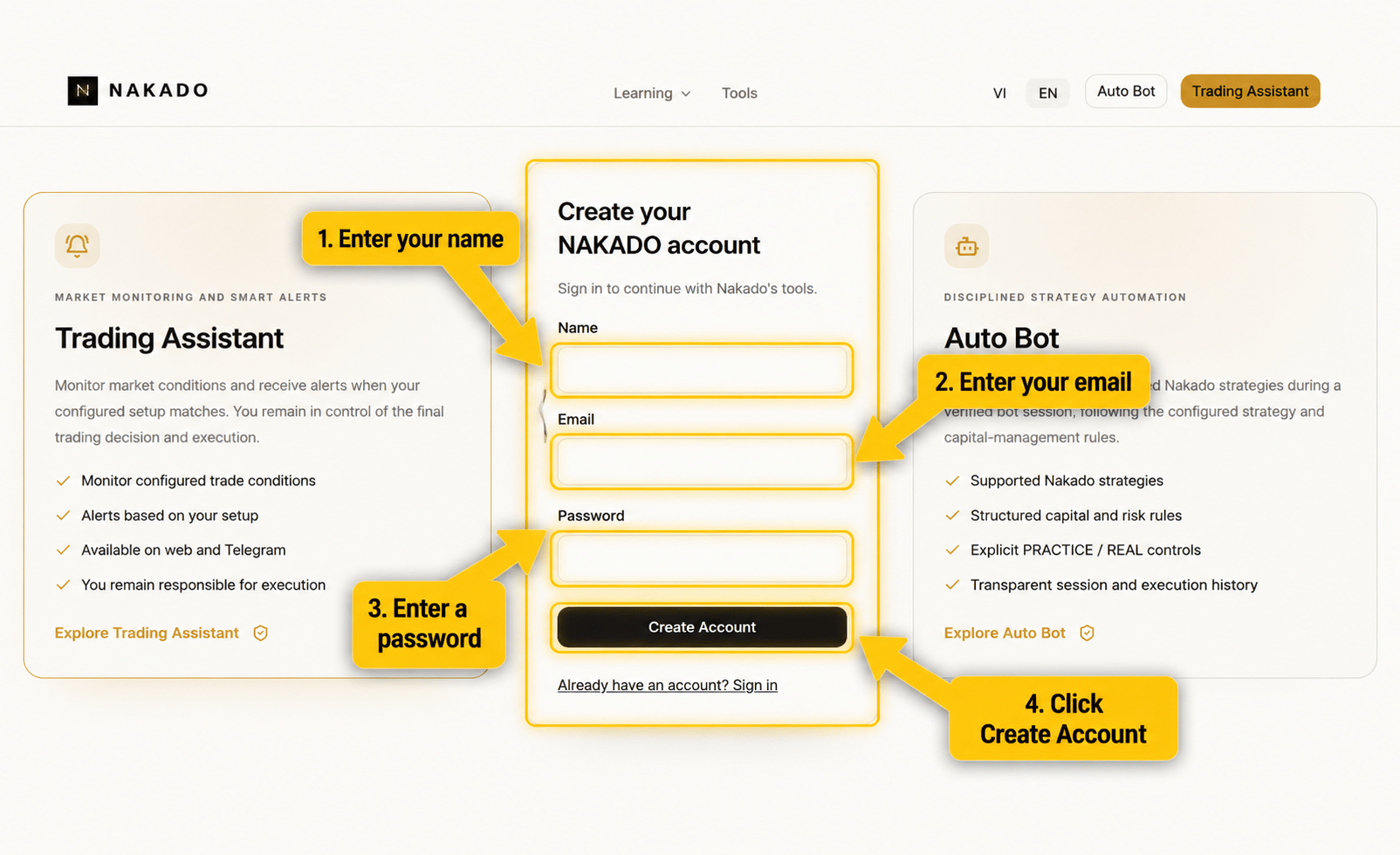
Create a NAKADO account using your name, email, and password. If you already have an account, sign in instead of creating another one.
- Enter your name.
- Enter the email for your NAKADO account.
- Create a password with at least 8 characters.
- Select Create Account.
Step 02
Open IQ Option Registration through NAKADO
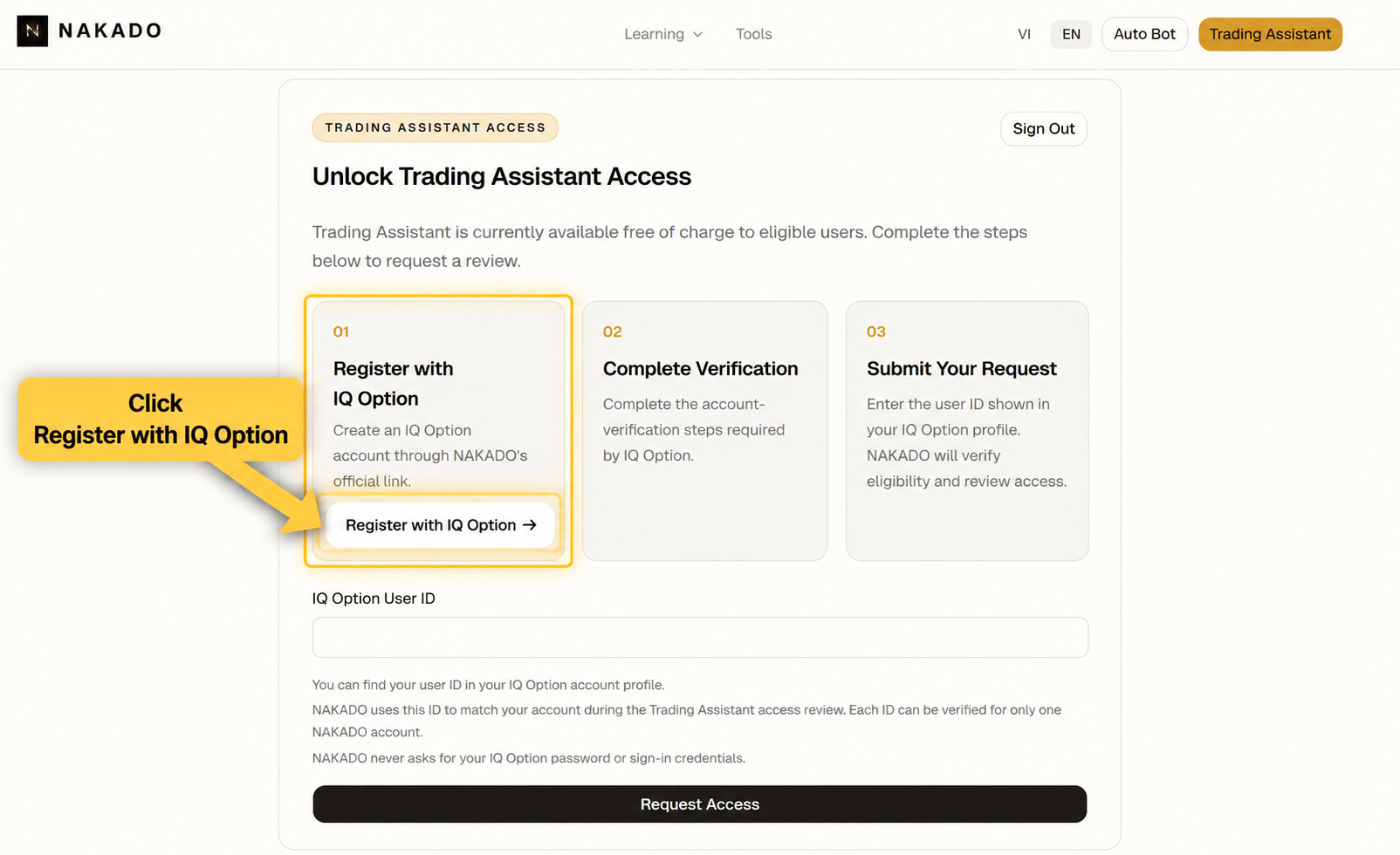
From NAKADO's access setup experience, select the IQ Option registration action. NAKADO's internal link opens the appropriate registration landing page.
- Open the English registration link.
- Continue on the IQ Option page that opens in a new tab.
This is a referral link. NAKADO may receive compensation when you register through this link.
Step 03
Create IQ Option Account
After opening the IQ Option registration page through NAKADO, complete the two parts below.
03a — Open the signup form
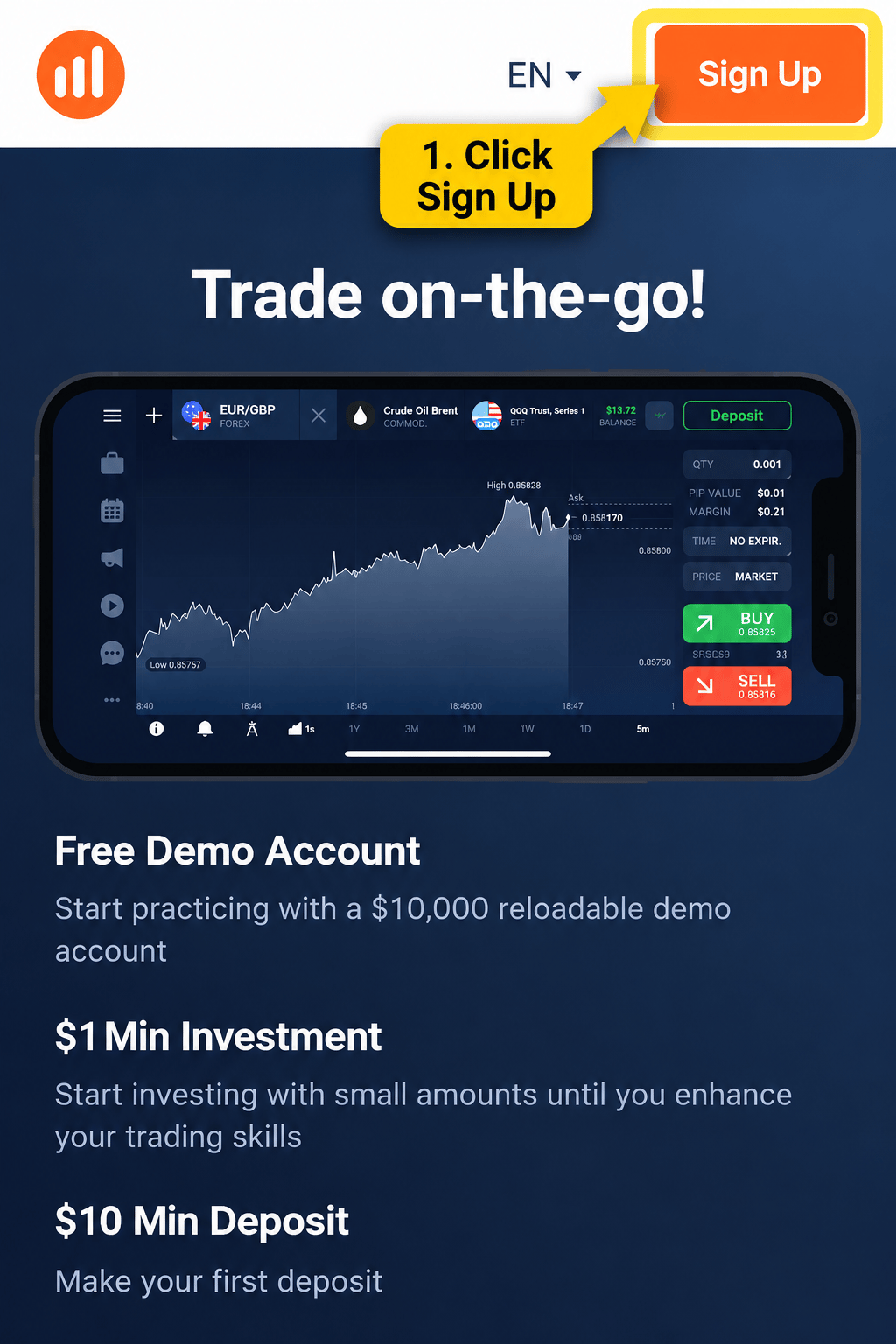
On the IQ Option landing page, click Sign Up to open the account creation form.
03b — Complete the form
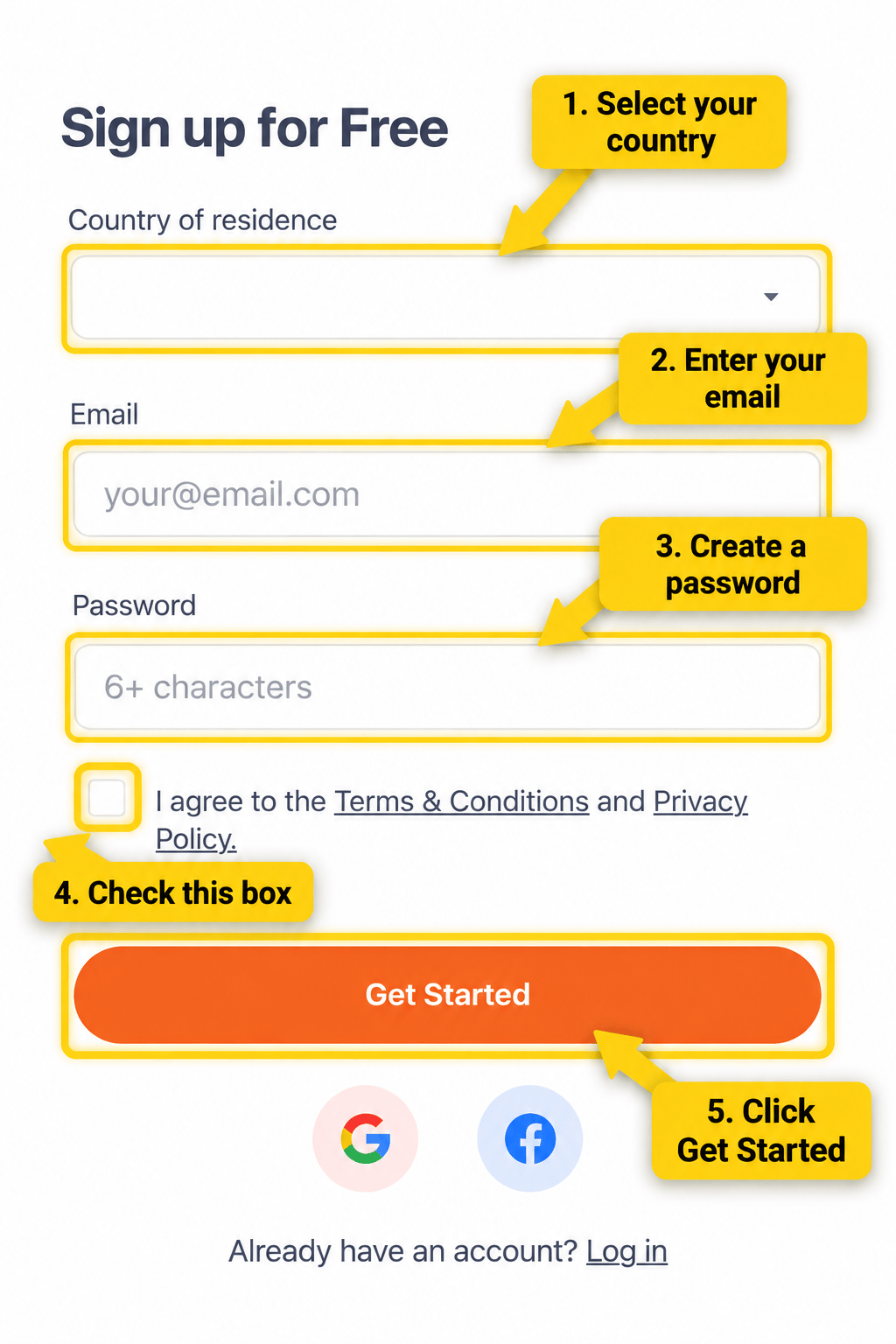
Select your country, enter your email, create a password, accept the required terms shown in the form, and continue to create the account.
Step 04
Complete IQ Option Verification
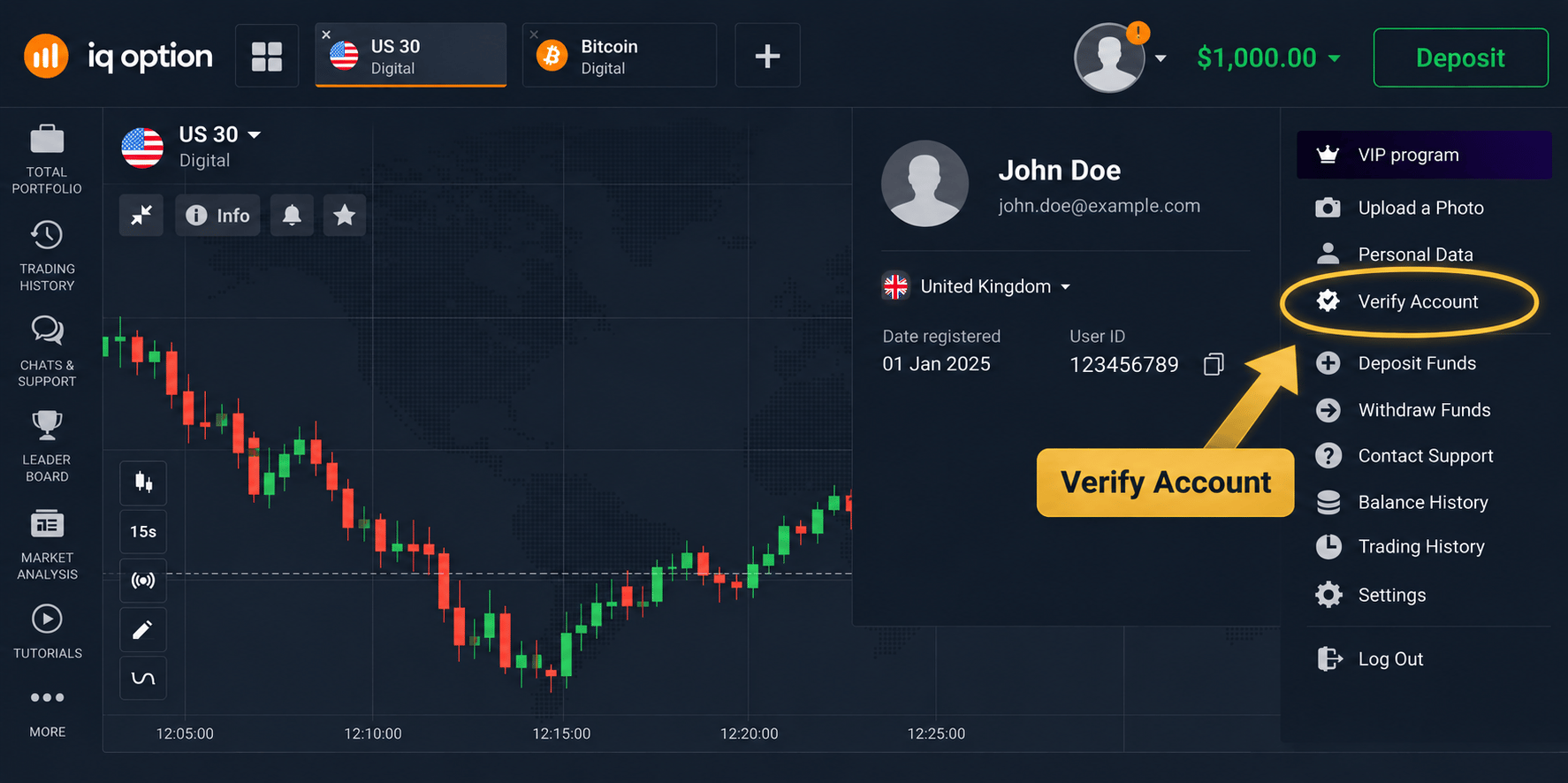
Open the IQ Option account or profile area, select Verify Account, and complete the verification requirements shown by IQ Option. IQ Option owns this flow and it may change.
- Open the account or profile menu.
- Select Verify Account.
- Follow IQ Option's current requirements.
Step 05
Find IQ Option User ID
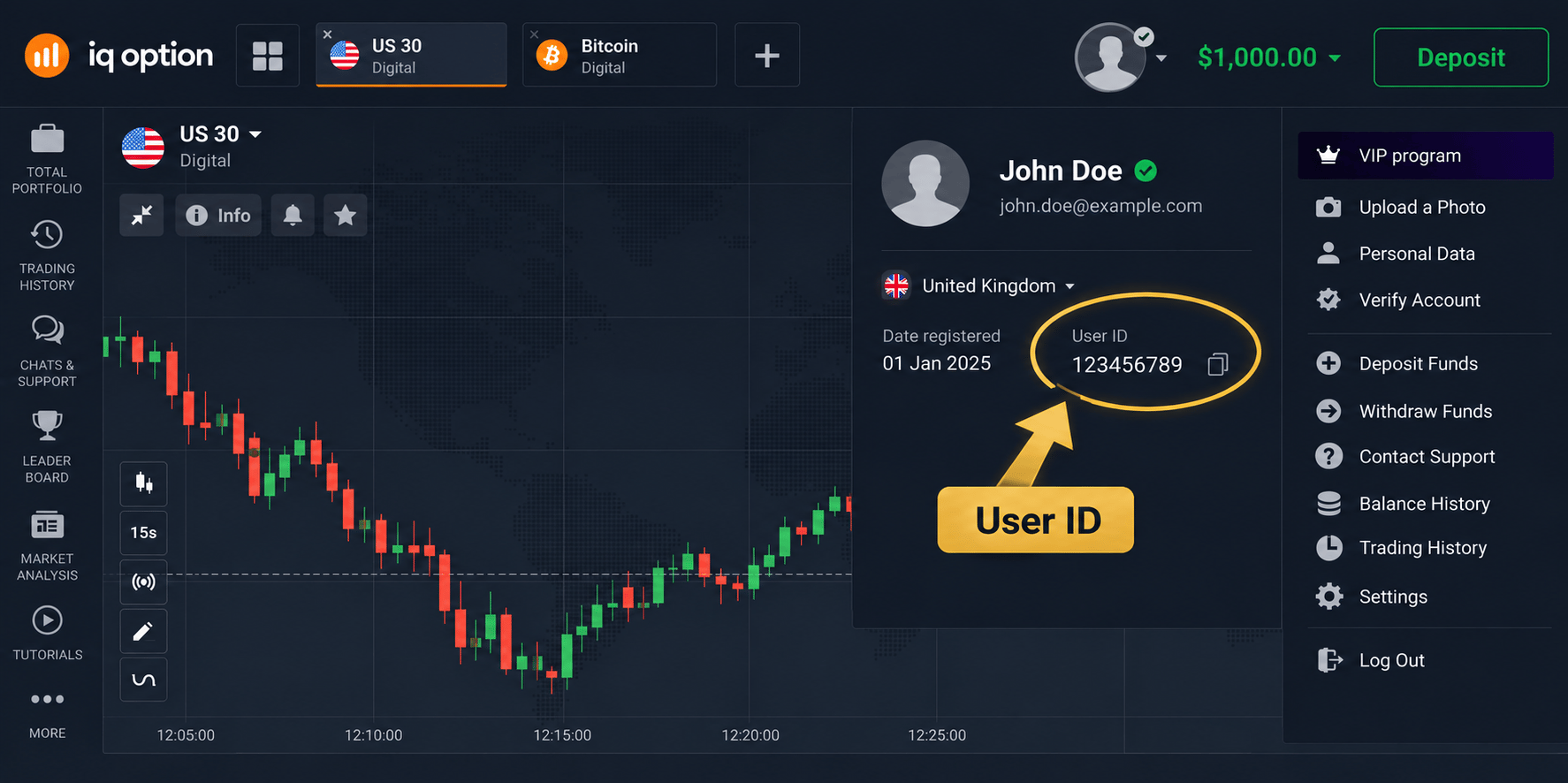
After verification, open the IQ Option account or profile area, locate User ID, and copy your own User ID.
Do not copy the illustrative number in the tutorial image. You must submit the User ID from your own IQ Option account.
Step 06
Submit IQ Option User ID to NAKADO
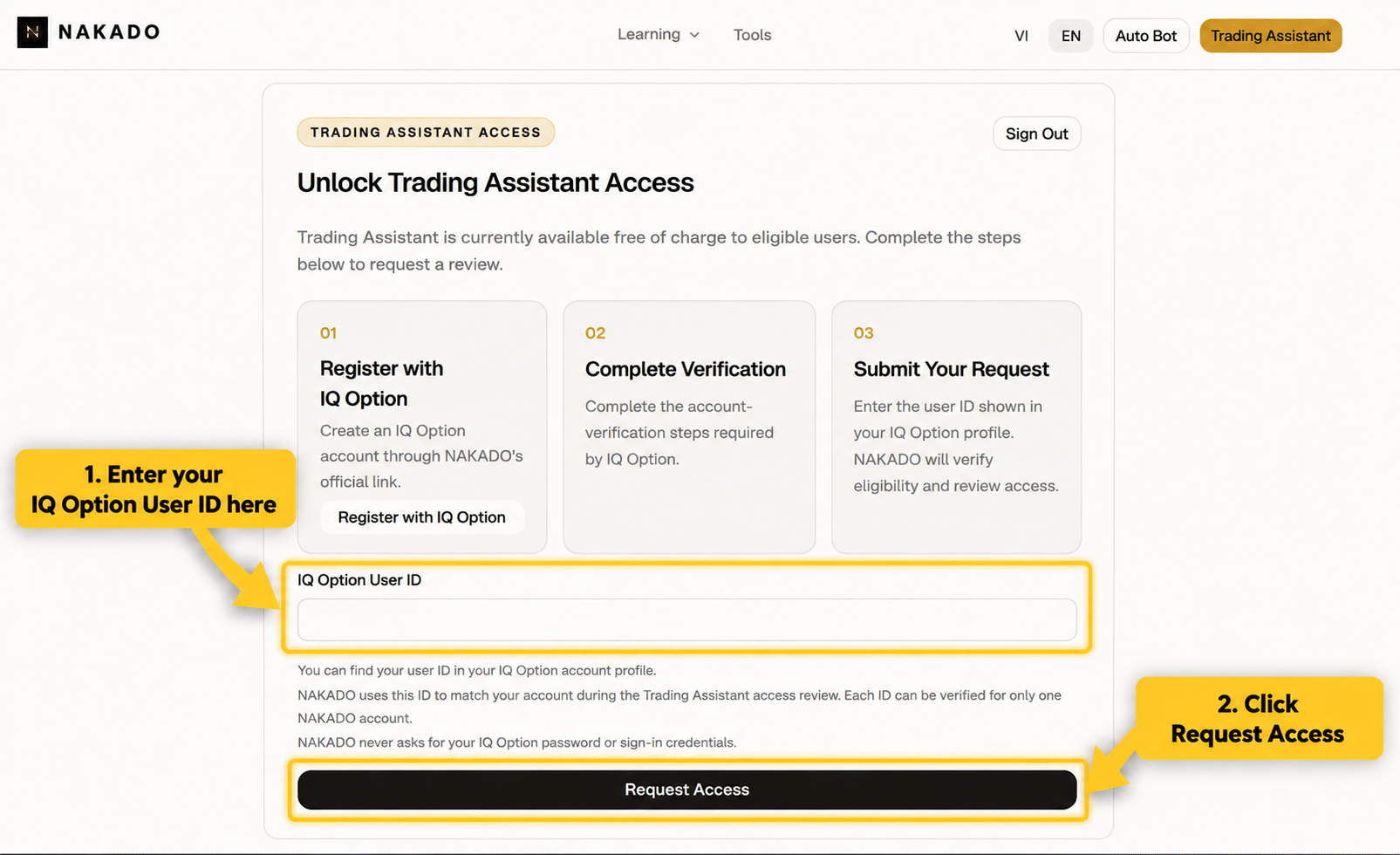
Return to NAKADO, paste the IQ Option User ID, verify that it is correct, and submit the access request.
- Sign in to your NAKADO account.
- Open the access request page.
- Paste your own User ID and check it carefully.
- Select Request Access.
Step 07
Wait for NAKADO Approval
After submission, your request is Review Pending (PENDING) while NAKADO reviews the information. When it is Approved (APPROVED), you can continue to Trading Assistant or Auto Bot.
If a request is Not Approved (REJECTED) or access is Revoked (REVOKED), the current access page allows you to submit information for another review.