Step 01
Create or sign in to a NAKADO account
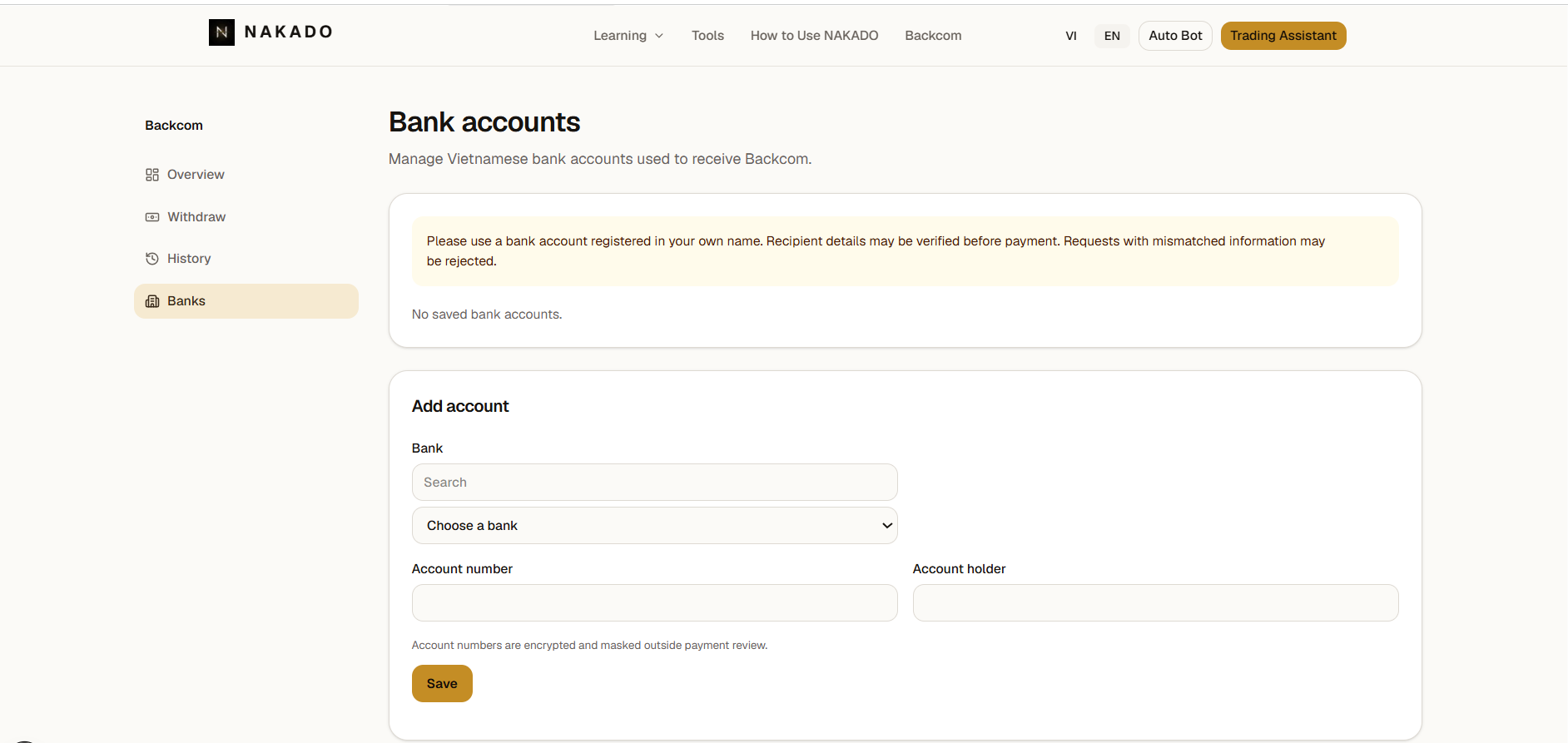
Backcom uses your existing NAKADO account. You do not register a separate Backcom customer profile.
- Create an account with your name, email, and password if you do not have a NAKADO account.
- If you already have an account, sign in with that account.
- The Backcom area requires authentication.
Step 02
Register with IQ Option through NAKADO
Open the locale-aware IQ Option registration link from NAKADO and complete registration on the page provided by IQ Option. Registration through the correct NAKADO link is part of the association verification flow.
Register with IQ Option through NAKADO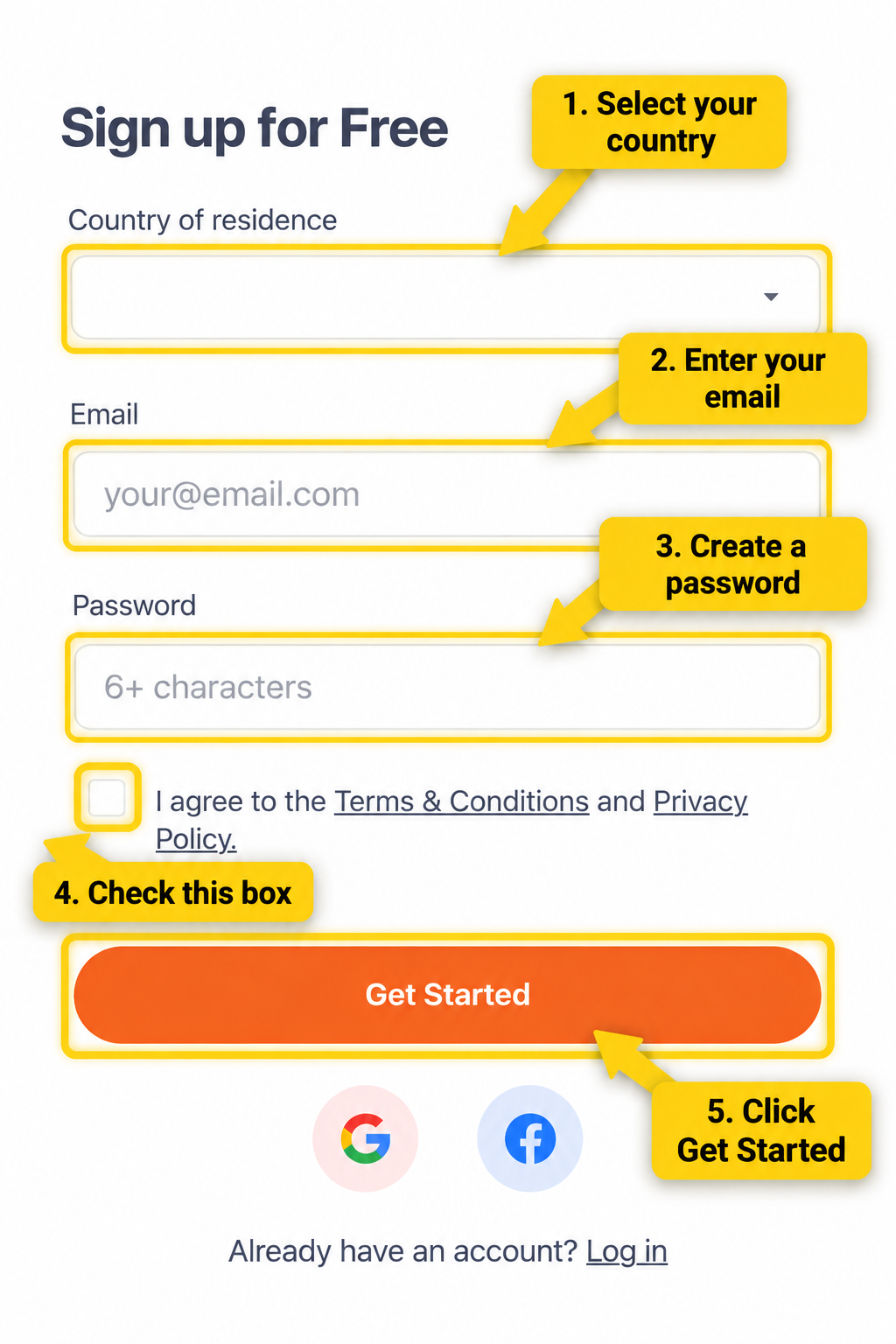
Step 03
Complete IQ Option account verification
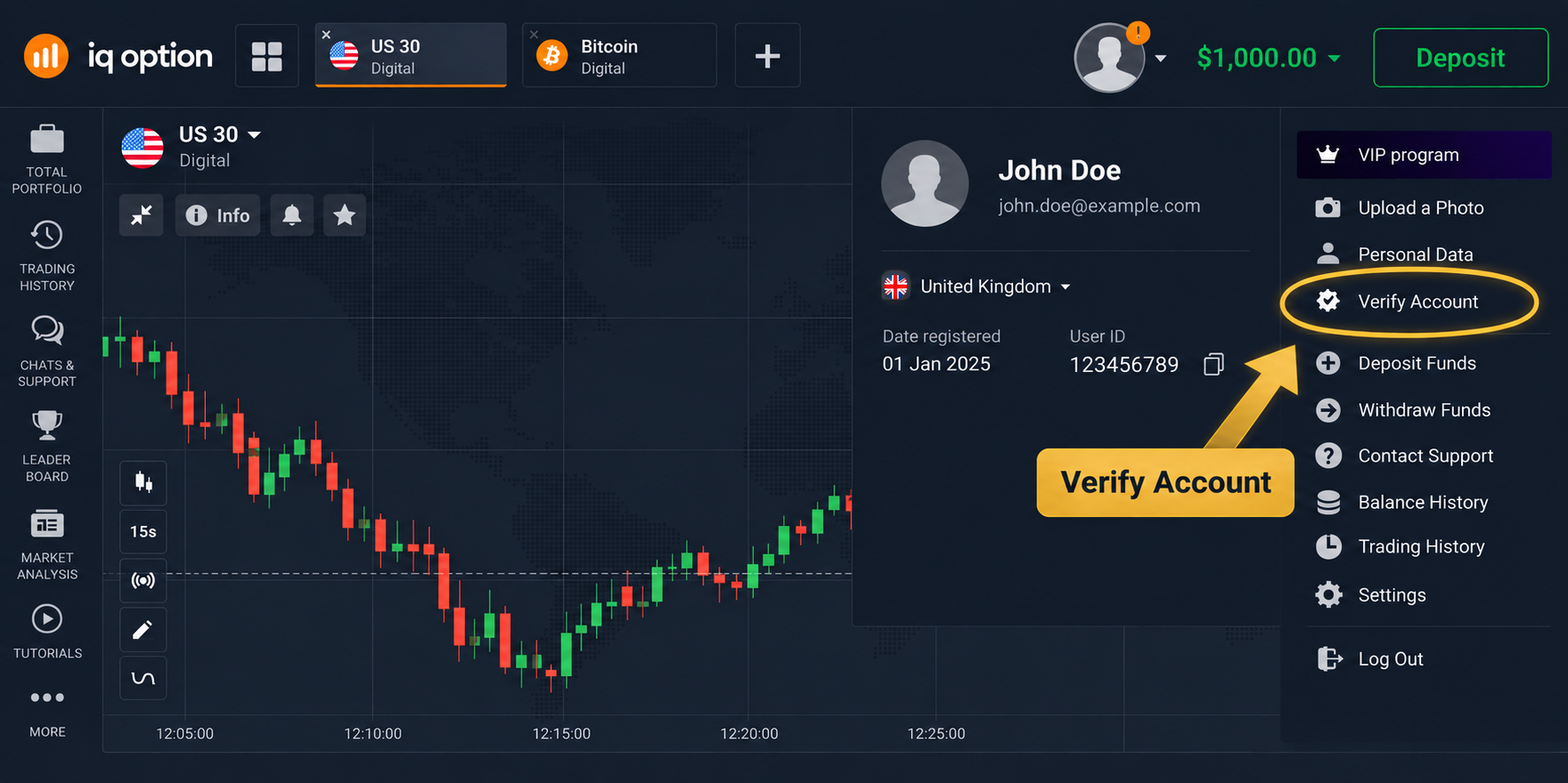
Open your IQ Option profile and complete the current verification requirements shown by IQ Option. IQ Option owns the process, required documents, and review timing, which may change.
Step 04
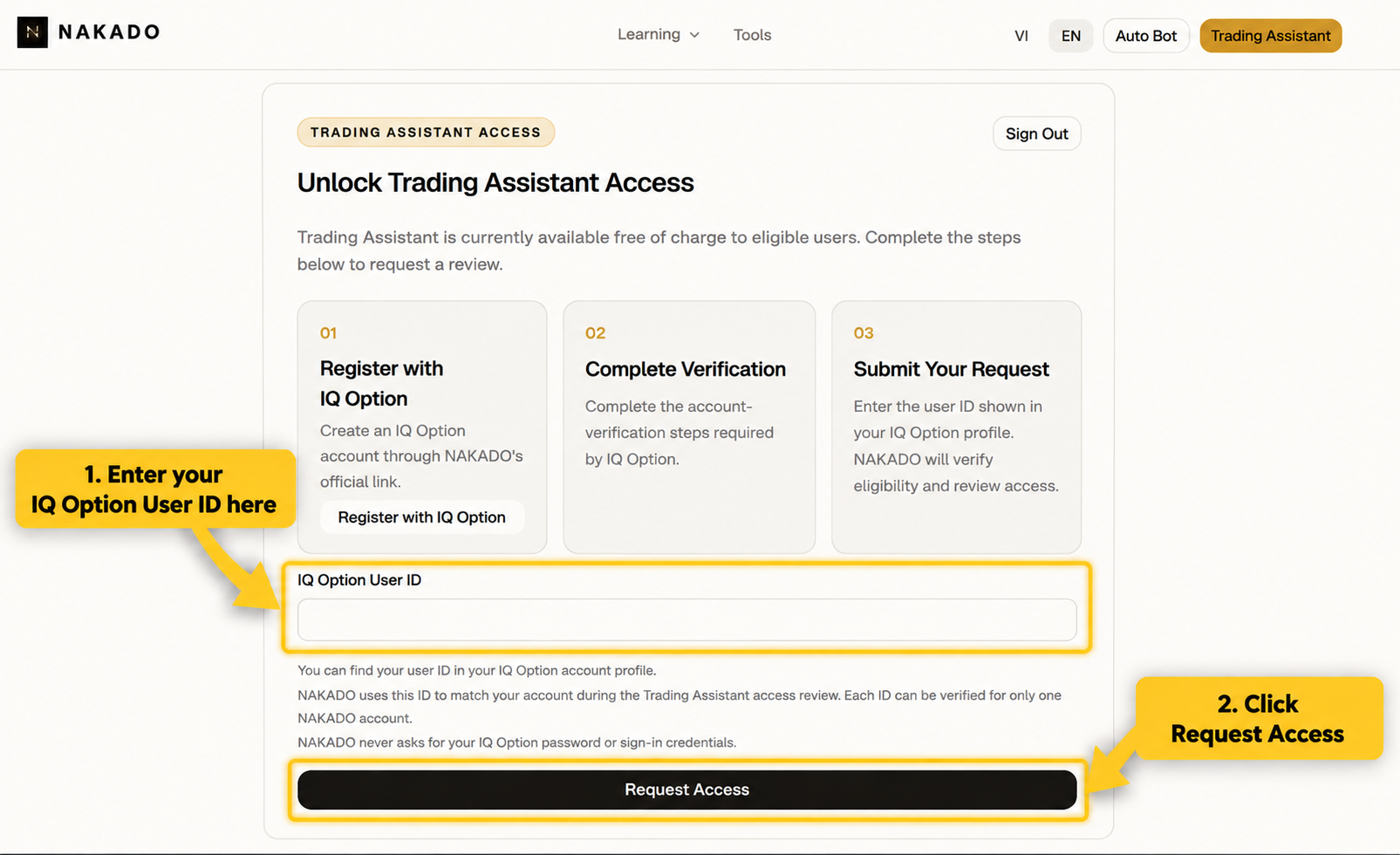
Submit your IQ Option User ID to NAKADO
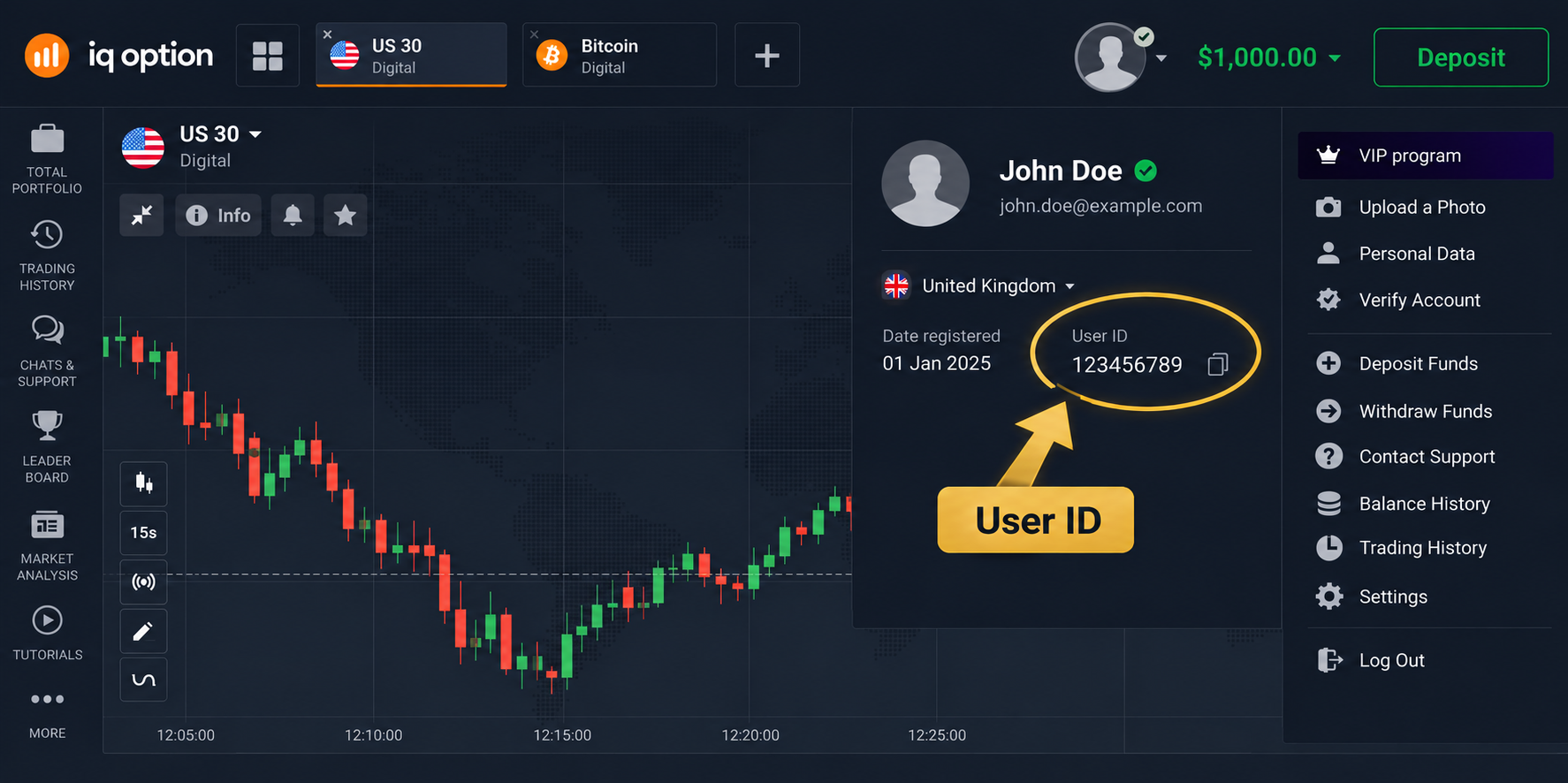
Copy the User ID from the IQ Option account you registered, then submit that ID on NAKADO's access request page.
- Find User ID in the IQ Option account or profile area.
- Open the NAKADO access request page.
- Paste your own User ID, check it carefully, and submit the request.
Step 05
Wait for NAKADO association approval
NAKADO reviews the submitted User ID and broker association. Backcom treats the account as eligible only when both the access request and IQ Option association are approved and their User IDs match exactly.
PENDING
The request is waiting for NAKADO review and is not yet eligible for Backcom.
APPROVED
The association is approved and matches; the account can receive Backcom entries confirmed by an administrator.
REJECTED
The request was not approved; the access page allows updated information to be submitted for another review.
REVOKED
Access was revoked; the existing flow allows a request for another review.
The association page displays PENDING, APPROVED, REJECTED, or REVOKED and lets you return to the selected product. APPROVED does not automatically guarantee Backcom credits, withdrawals, or Auto Bot access.
Step 06
Review the Backcom dashboard
After signing in, open Backcom to see your NAKADO account, associated IQ Option User ID, approval state, and current balances.
- Available: balance that may be used for a withdrawal request when every current condition is met.
- Reserved: balance held for an active withdrawal request.
- Total credited and Total withdrawn: recorded cumulative totals.
- Recent activity: recent ledger entries and withdrawal request statuses.
NAKADO account
demo•••@example.com
Linked IQ Option ID
••••••789 Approved
Available Backcom
$24.50
Reserved
$3.00
Total credited
$35.00
Total withdrawn
$7.50
Minimum withdrawal
$5.00
Step 07
Understand withdrawals and availability
When withdrawal requests are enabled, an eligible account can add an owned Vietnamese bank account, choose an amount, review the locked exchange rate and VND payout, and confirm the request.
- The request must satisfy the current minimum, available balance, approval, and reconciliation checks.
- Each customer can have only one active PENDING or PROCESSING request.
- Supported statuses are PENDING, PROCESSING, COMPLETED, REJECTED, and CANCELLED.
- Bank payment is handled and confirmed by an administrator; it is not an automatic or instant transfer.