Step 01
Choose a Strategy
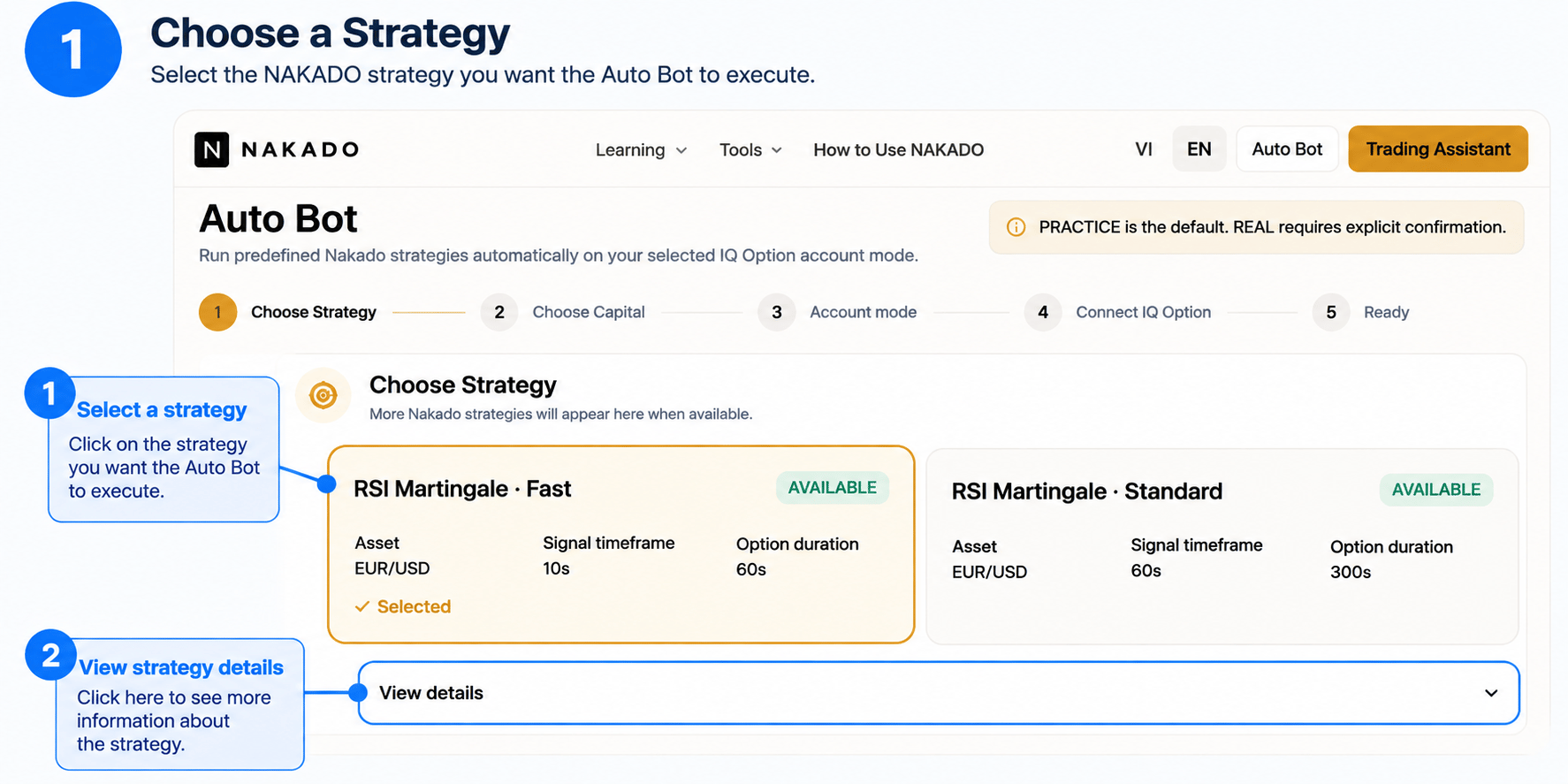
Select the available strategy Auto Bot should run. The strategy card shows the asset, signal timeframe, and option duration; select View details if you want to review more strategy and risk information.
Step 02
Choose Capital
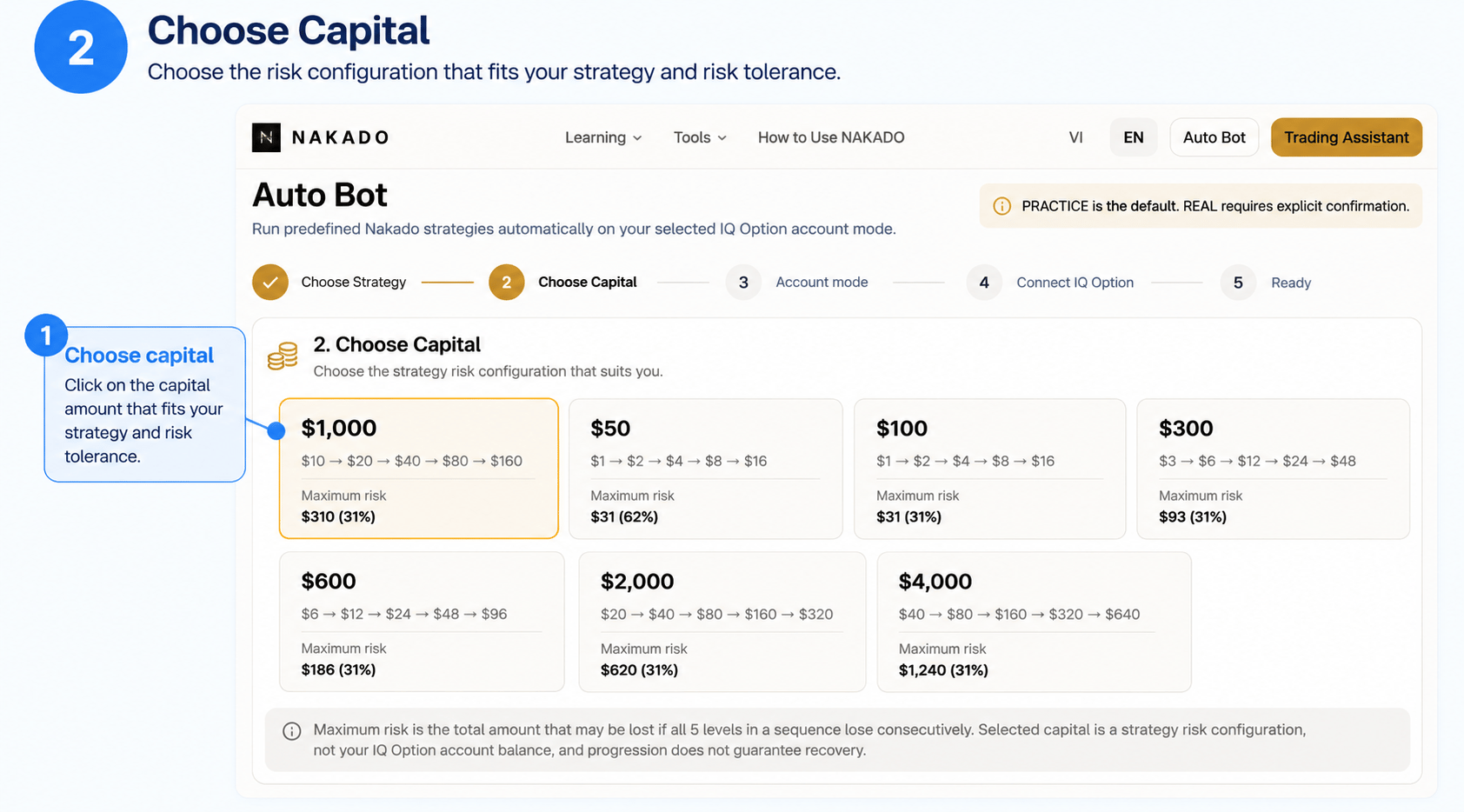
Select the strategy risk configuration for the session. Each configuration shows its order progression and maximum risk.
Step 03
Choose Account Mode
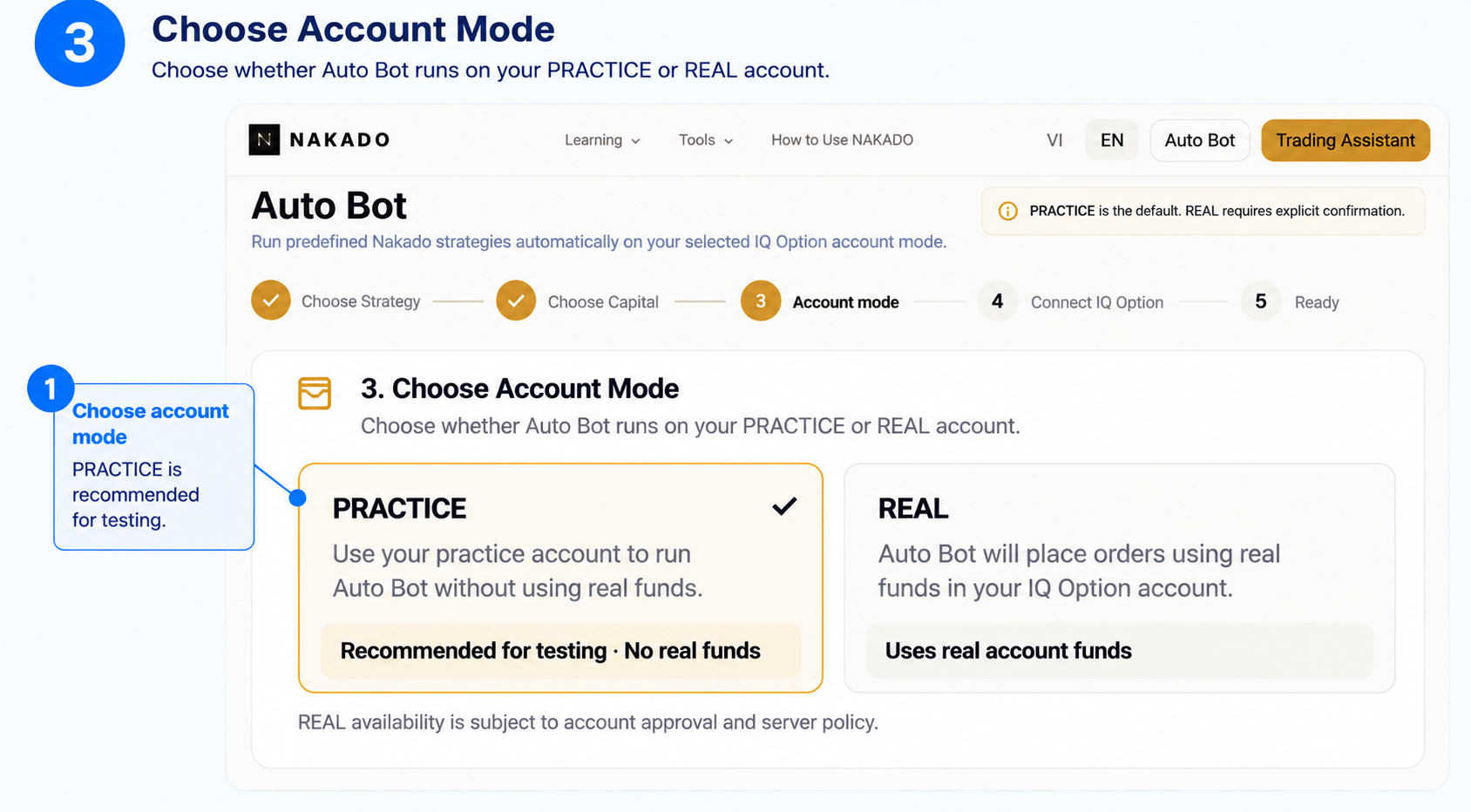
PRACTICE runs Auto Bot with the IQ Option practice account without real funds and is recommended for first-time testing. REAL uses real funds, requires explicit confirmation, and works only when the current account, balance, and server policy permit it.
Step 04
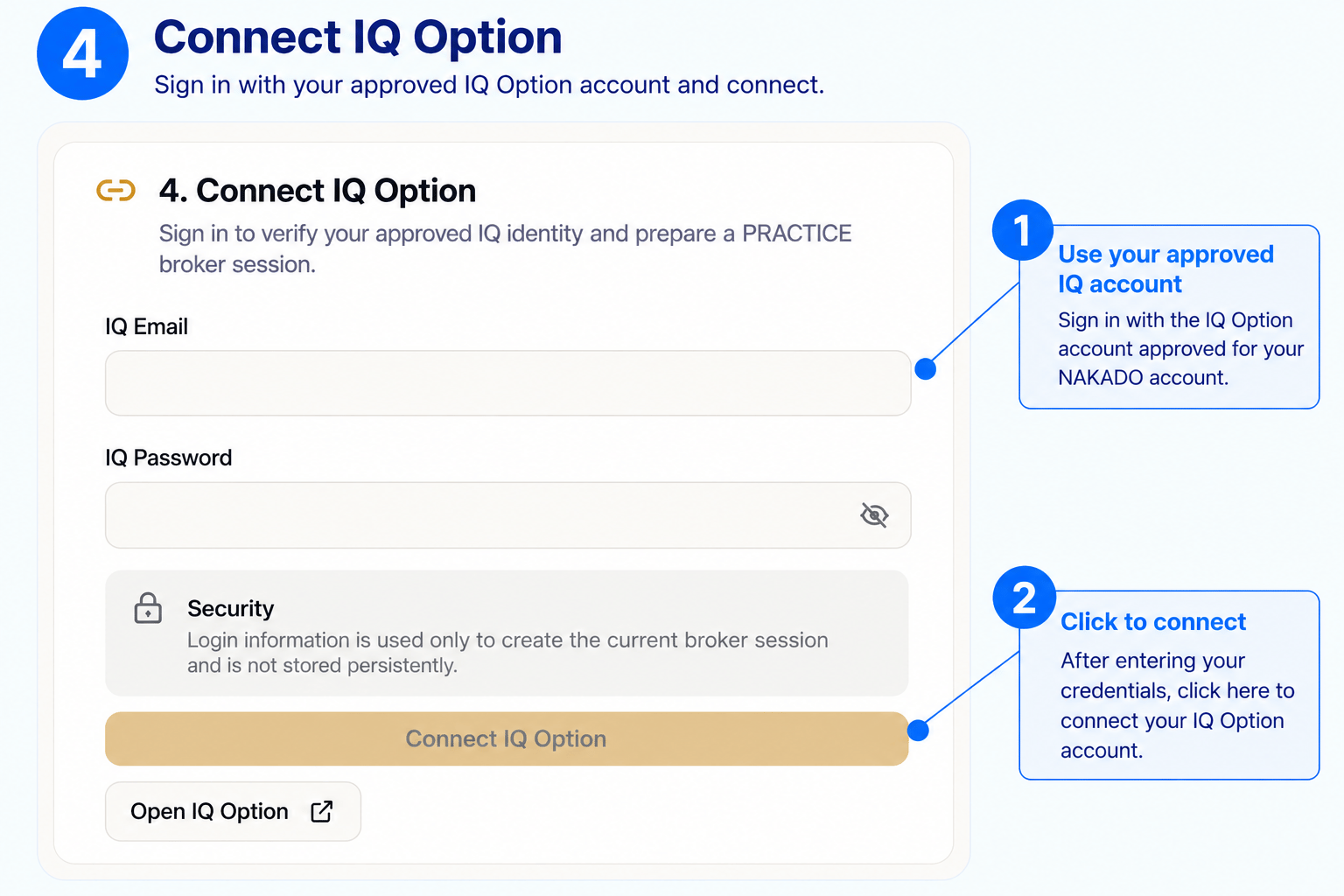
Connect IQ Option
Sign in with the same IQ Option account approved for your current NAKADO account. Your login information is used to create the active broker session and is not stored persistently.
Step 05
Start & Monitor Auto Bot
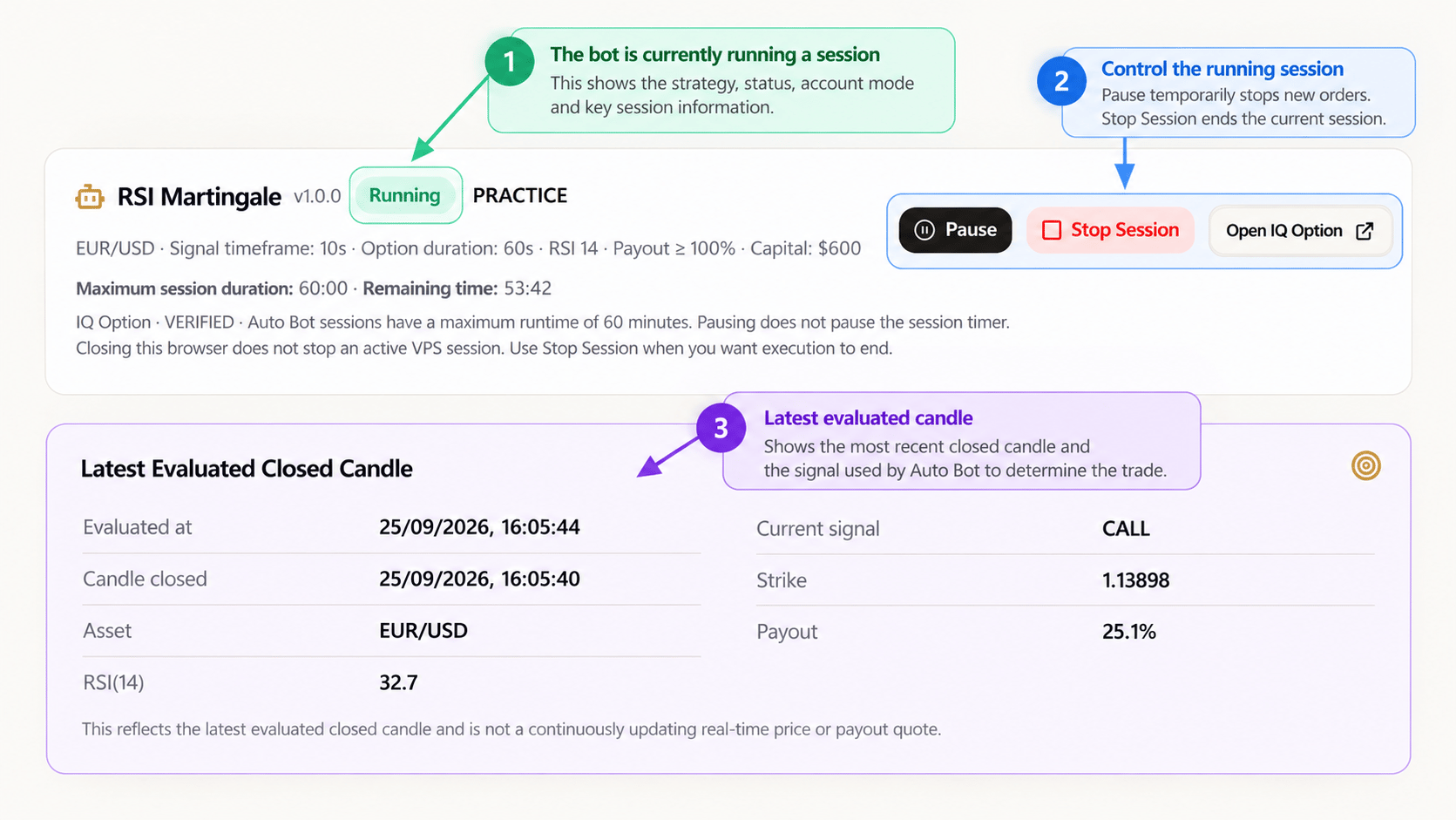
After connecting, start the session and monitor its Running state, selected strategy, PRACTICE or REAL mode, remaining session time, and latest evaluated closed candle.
- Pause blocks new executions without closing an accepted position, and it does not pause the session's 60-minute maximum timer.
- Stop Session prevents new orders; if an accepted position remains open, Auto Bot preserves the session while its result is reconciled before ending.
- Closing the browser does not stop an active server/VPS Auto Bot session. Use Stop Session when you want execution to end.
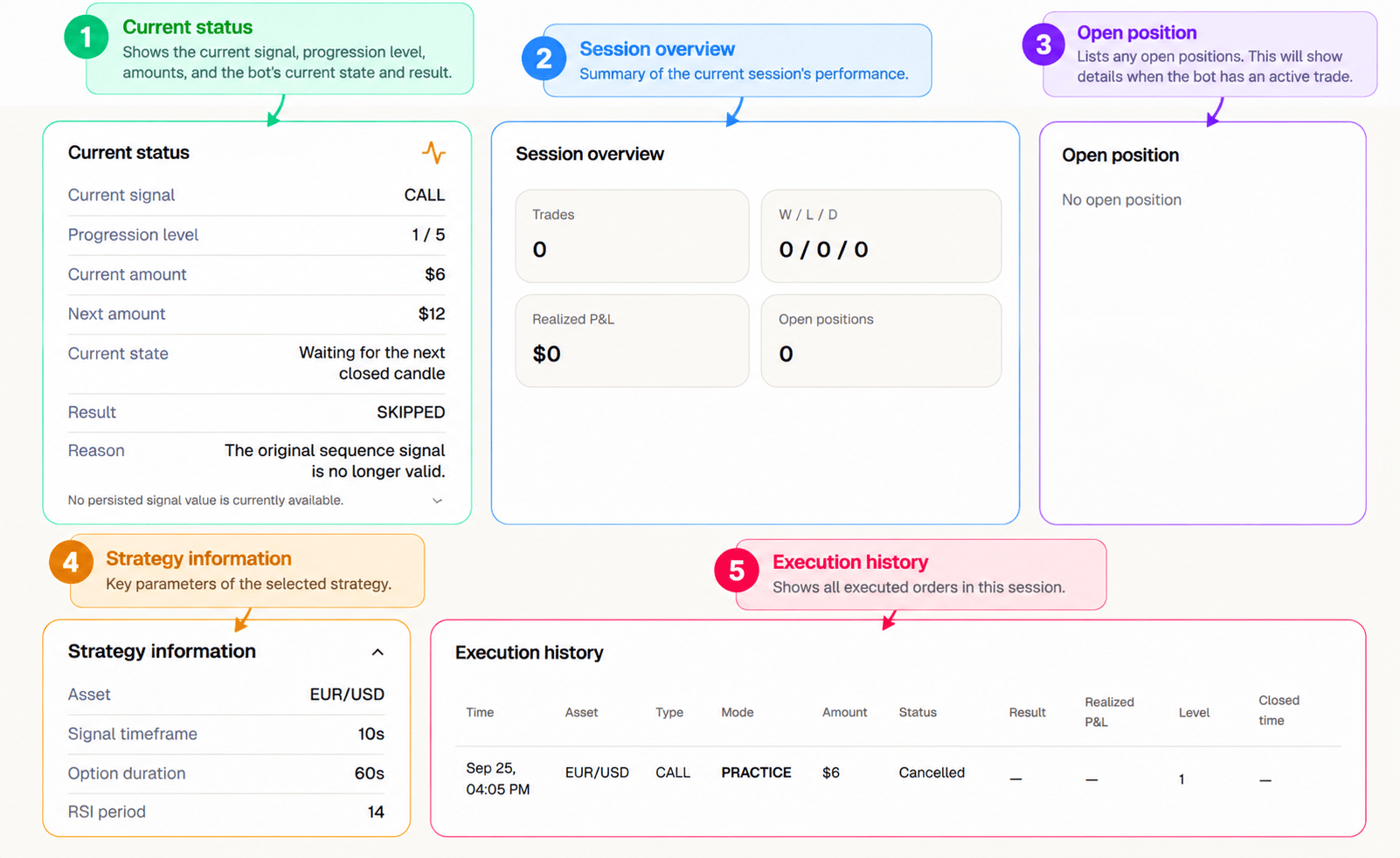
The lower dashboard summarizes session state and activity without requiring you to leave Auto Bot.
- Current Status shows the current signal, progression, and execution state.
- Session Overview summarizes session results and realized performance.
- Open Position shows unresolved exposure when one is present.
- Strategy Information restates the active configuration; Execution History records execution activity during the session.
Step 06
Execution on IQ Option
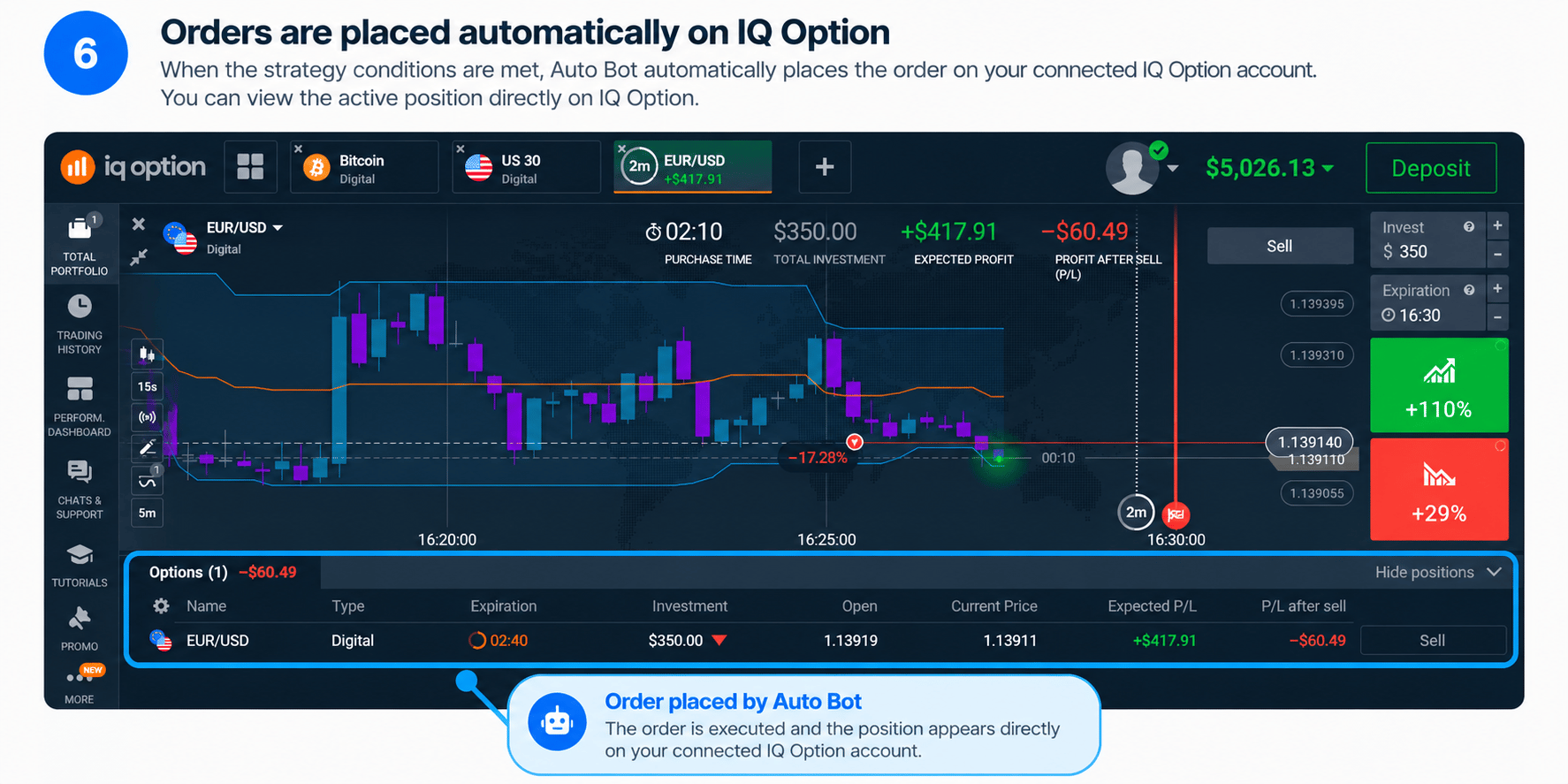
When the selected strategy conditions and execution requirements are satisfied, Auto Bot can automatically submit the order to the connected IQ Option account. The active position can then be viewed directly on IQ Option.
This screenshot completes the illustrative flow; its values may differ from Step 5. Not every evaluated candle creates a trade, and signals, order submission or fills, profit, and recovery are not guaranteed.